


Learn how to create AI UGC ads in 10 minutes—no filming. Follow the ChatGPT → LipSynthesis → CapCut workflow, plus a YouTube tutorial, script prompt, and editing checklist.
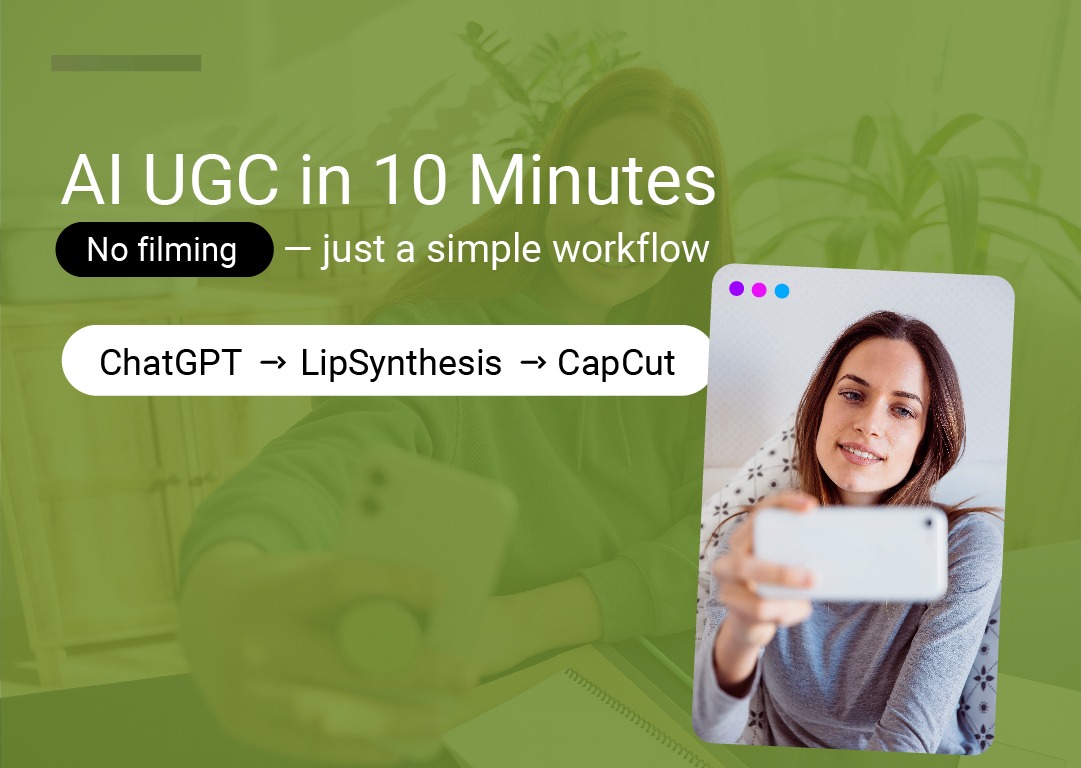
Creating AI UGC doesn’t have to be complicated—or expensive. In this guide, you’ll learn a simple, repeatable workflow to create AI UGC ads (UGC-style videos that feel like real user generated content) in minutes, using three tools:
ChatGPT (to write and refine the script)
LipSynthesis (to generate multiple AI UGC videos with different avatars/characters)
CapCut (to edit, caption, and export)
If you want to create AI UGC videos fast—without filming—this is the approach.
Want to follow along step-by-step? Watch the full YouTube tutorial here:
Want to test the workflow right now?
Try LipSynthesis free (1 minute)—it’s enough to generate your first UGC-style video variation and see how the video generator feels.
Here’s the full flow you’ll repeat for every product:
ChatGPT: Upload product images → generate a 10–20s UGC ad script → refine tone + pacing
LipSynthesis: Choose 5 characters → customize voice + emotions → generate 5 variations
ChatGPT: Upload avatar image + product image → generate a “proof” image (person holding product)
CapCut: Set aspect ratio → add visuals + B-roll → captions → effects → export
Scale: Swap only the character clip to create dozens of variations
This is how you go from one idea to multiple ugc ads quickly—without filming and without rebuilding your edit every time.
Open ChatGPT and upload your product image along with a few supporting images (angles, packaging, lifestyle shots). Then ask ChatGPT to generate a short UGC-style ad script.
Write a short UGC style ad script for this product between 10 and 20 seconds. Make it sound natural and enthusiastic. Use simple spoken language, short sentences, and one clear call-to-action.
It usually takes a few attempts to get the script perfect. Don’t be afraid to:
Shorten sentences
Make it more relatable (less “ad-y”)
Adjust tone and pacing
Keep the language simple for your audience
Once you have a script you’re happy with, copy it—you’ll use it in the next step.
Now head over to LipSynthesis.
Pick around five different creators/avatars/characters. The goal is to create multiple variations of the same message—so you can test what works.
You can use the default voice or upload your own voice example.
Paste your script into the text section, then experiment with voice parameters like:
Emotions
Tone
Creativity
This helps the delivery feel more natural and match your product style.
Once you’re happy with the voice preview, generate the lip-synced video.
Repeat with five different characters so you have multiple AI UGC videos to work with.
If you want to try this right away, start here:
Try LipSynthesis free (1 minute)
This is a powerful step most people skip.
Go back to ChatGPT and upload:
Your avatar image (the character)
Your product image
Then ask something like:
Generate an image of this person holding this product in a natural UGC style. Make it look like a casual phone photo with realistic lighting and slight imperfections. No studio look.
This creates a realistic image of your character holding the product. You can use it later in your video as:
A hook “thumbnail moment”
An overlay while the character is speaking
It adds authenticity and makes the ad feel more real and relatable.
Once all your lip-synced videos are generated, open CapCut on your PC and click Create project.
Import everything you’ll need:
Lip-sync character videos
Product images + supporting images
Any B-roll clips you want to use
Drag the main lip-sync character video onto the timeline to start building your ad.
Different platforms use different video sizes.
TikTok and Instagram Reels: vertical 9:16
Some Facebook ads: square or vertical
Before editing, set the correct format in CapCut:
Go to the top of your project
Find Aspect ratio / Canvas settings
Choose 9:16 for TikTok, Instagram, and most Facebook placements
If your clip doesn’t fit perfectly, select it and adjust the scale and position so it fills the screen. Doing this at the beginning saves time and makes sure your video looks right on every platform.
Drag your product image—or the AI-generated image of the person holding the product—above your main video.
Resize and position it on screen
Add subtle animation (scale or fade)
Use this especially at the beginning to grab attention.
Add B-roll clips showing the product in action. Match them with what the character is saying:
When the character mentions a feature, show that feature visually
This keeps viewers engaged and builds trust.
Go to the effects tab in CapCut and focus on attention-grabbing elements:
Arrows or highlight effects pointing at the product
Quick cuts and zoom/blur transitions between clips
Small motion effects when switching scenes
The goal is to guide attention and keep the video moving—don’t overdo it.
Go to the text tab and click Auto captions.
CapCut will generate subtitles for everything being said. Then customize them:
Highlight keywords
Adjust colors
Position them clearly
Make certain words pop with simple animations
Captions matter because many people watch without sound—especially on TikTok and Instagram.
Before you export, add a final frame or on-screen CTA that tells viewers where to go next. Depending on your platform, that can be:
A product link
A “Sign up” or “Join” CTA
A channel/page CTA (for organic content)
Here’s the tip that turns one ad into dozens.
Take the other four lip-synced videos you generated and simply replace the character in your edit while keeping everything else the same:
Same script
Same captions
Same effects
Same visuals
Only the person changes.
This lets you test different creators quickly and see which one performs best—so you can scale what works and improve conversions.
Upload product images to ChatGPT
Generate + refine a 10–20s UGC script
Choose 5 characters in LipSynthesis
Customize voice (tone/emotion/creativity) and generate videos
Generate a proof image (person holding product)
In CapCut: set aspect ratio first
Add product visuals + B-roll matched to the script
Add arrows/highlights + quick transitions
Generate auto captions and highlight keywords
Export and swap characters to create variations
If you want to create your first AI UGC variation today (no filming), start here:
What is AI UGC?
AI UGC is UGC-style content made with artificial intelligence—designed to feel like real user generated content (relatable, casual, creator-style), but created with AI tools and a video generator.
Can I create AI UGC ads for Instagram and Facebook?
Yes. Just set the right aspect ratio in CapCut and export for your platform. Vertical 9:16 works for Instagram Reels, TikTok, and many Facebook ad placements.
Do I need voiceovers or filming?
No filming is required for this workflow. You generate the script in ChatGPT, create the talking video with LipSynthesis, and then edit in CapCut.
Can I cancel after trying it free?
Yes—if you’re testing the workflow, you can try it free (1 minute) and decide later. (Always check the latest plan details inside your account.)
Where can I get support if something looks off?
If your video feels unnatural, refine the script (shorter sentences), adjust tone/emotion settings, and test another character. If you still need help, check LipSynthesis support resources or reach out via Discord (the fastest).
Pick a product, generate a 10–20 second UGC script in ChatGPT, then create a few quick variations in LipSynthesis.
Once you have one edit in CapCut, you can swap the character clip and export multiple versions fast—so you can test what works and scale results.
Start Creating with Real Human Avatars → Sign up now
See How Custom Avatars Work → Custom AI Avatars guide
By the LipSynthesis Team
We're on a mission to make video creation accessible to everyone—using real people, not CGI. Our platform features hundreds of real human avatars filmed on location, plus custom avatar creation so you can scale your own presence through AI.
Explore our platform at lipsynthesis.com or read more insights on our blog.